Account & access
Reset a forgotten password
Request the reset email from the sign-in page and safely return to your account.
Updated 2 November 2026 · 3 min read
Open this in Genie ↗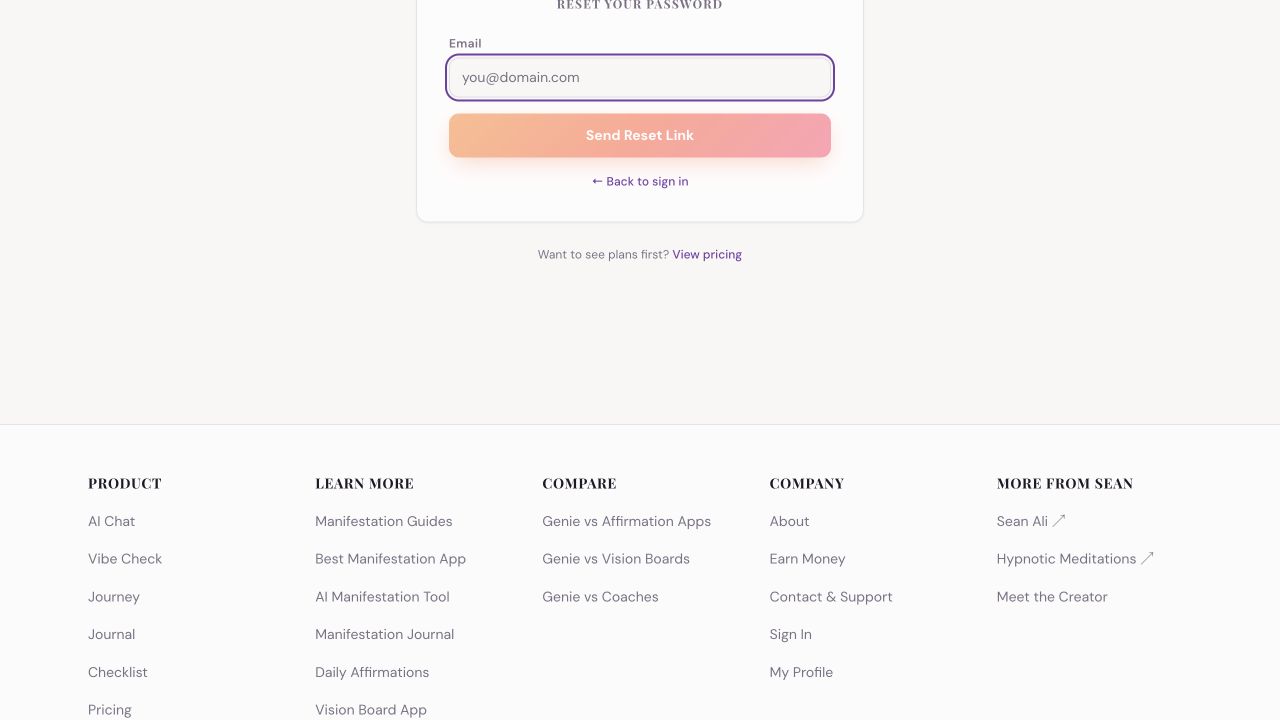
Step by step
- Open Sign In and choose Forgot your password?.
- Enter the email used for your email-and-password account. Choose Send Reset Link once and wait for the page's confirmation.
- Look for the reset message in your inbox, spam and promotions folders. Use the newest reset email if you requested more than one.
- Open the link and complete the password-reset screen yourself. Return to Sign In and use your email and the new password.
No reset email
Double-check the address and allow time for delivery. Search your inbox for Genie and password reset. If you originally used Google, try Sign in with Google instead.
The link expired or does not work
Return to the sign-in page and request a fresh link. Avoid forwarding the email or sharing the link. If the new link still fails, send support the error text without including the link.
What has been checked
The request form and reset route are present. Email delivery and resetting a real account were not exercised for this tutorial. Do not enter a new password on any page that is not the app's legitimate reset flow.
Still need a hand?
Contact support with the page URL, what happened and any error text.
← Back to all tutorials