Account & access
Sign in or create your account
Choose the right sign-in method and avoid accidentally using a different account.
Updated 2 November 2026 · 3 min read
Open this in Genie ↗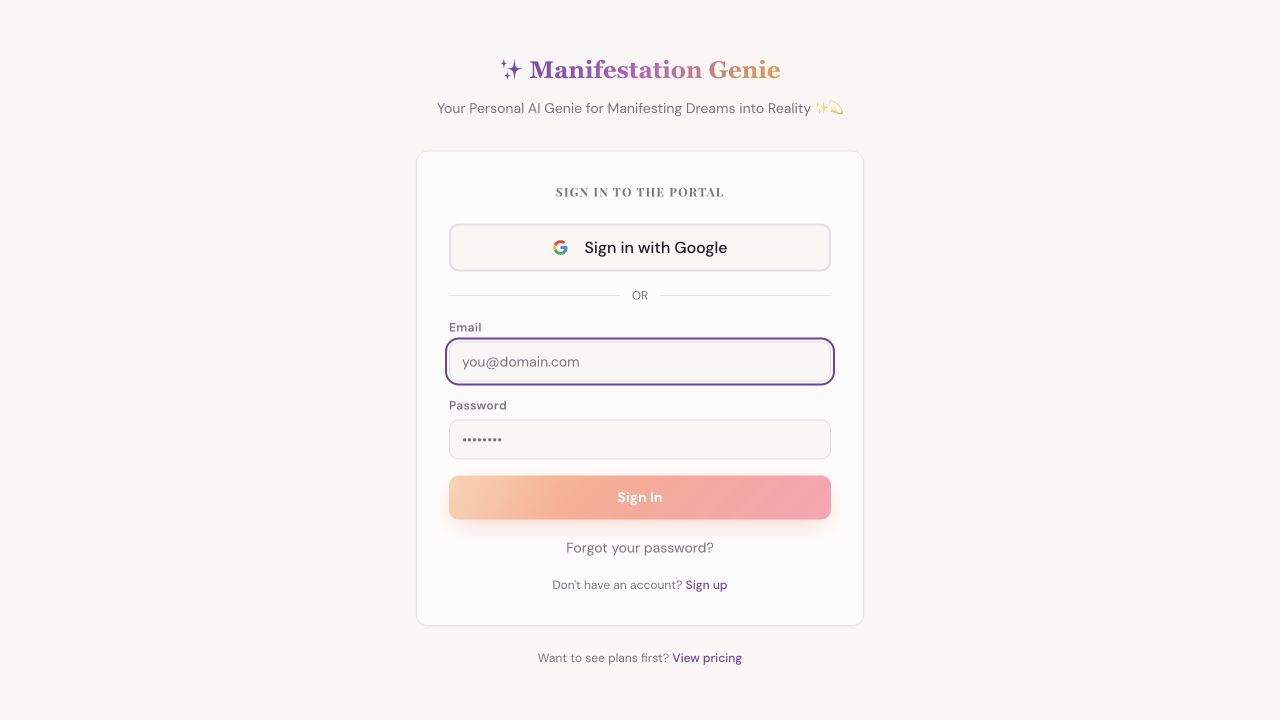
Step by step
- Open the Sign In page. If you created your account with Google, choose Sign in with Google and select the same Google account.
- If you created an email-and-password account, enter that email and password, then choose Sign In. Check spelling and spaces before trying again.
- For a new account, choose Sign up. Follow the fields shown on the page. If asked to confirm your email, open the confirmation message and return to the app.
- After sign-in, open your Profile and confirm that the account and access look right before creating new work or purchasing anything.
“Invalid email or password”
Try the method you originally used. A Google account may not have a separate Genie password. If you used email and password, use Forgot your password? rather than repeatedly guessing.
Google opens the wrong account
Use the account chooser and select the address you used for Genie. On a shared device, check the selected account before continuing. Opening an ordinary browser tab can help if an embedded preview blocks Google sign-in.
Still stuck?
Contact support with the email used to sign in, the sign-in method and the exact error. Never send your password, reset link or Google verification code.
Still need a hand?
Contact support with the page URL, what happened and any error text.
← Back to all tutorials